How to split a class into fair groups in under a minute
A step-by-step walkthrough for teachers, coaches and organisers: from a class list to random, even groups on the board, using the free Team Generator.
walter2930 3 min read

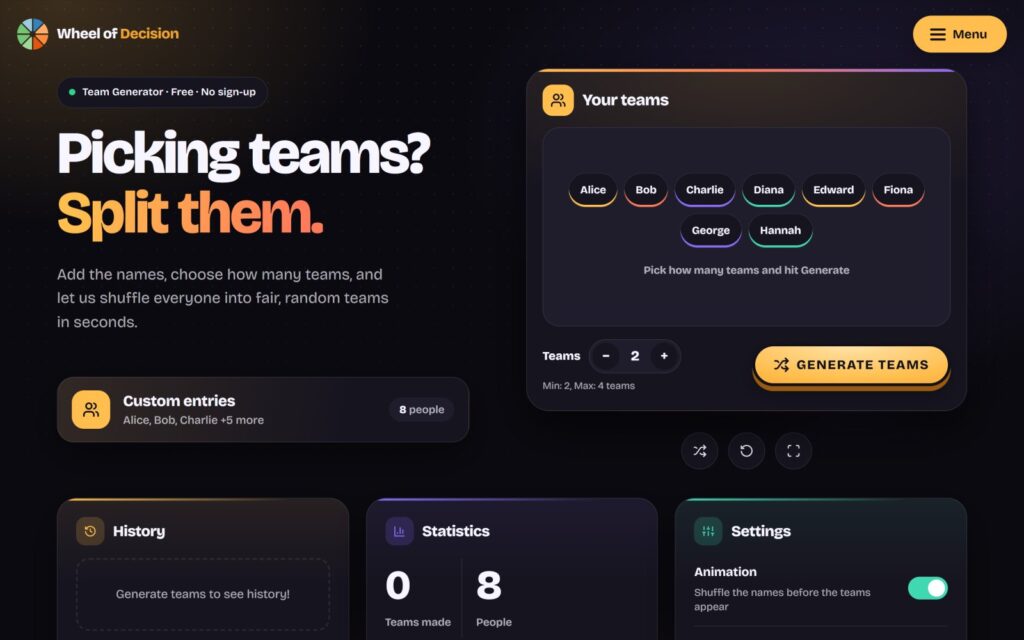
This is a walkthrough, not a review. Let’s take an example: you have a class of 27, you need groups for a project, and you have about a minute before attention drifts. Here’s how to do it with the free Team Generator, and the choices worth thinking about along the way.
Step 1: Get the names in (do this once)
You can type or paste names straight into the participants box, one per line. But if your class list already lives in a Google Sheet, import it instead:
- Share the sheet as “Anyone with the link”.
- In the participants dialog, open Import from Google Drive and paste the link. A Google Doc or .txt / .csv file works too.
- Pick the column with the names and add them.
The list is saved in your browser, so tomorrow it’s already there. When a student joins or leaves, update the sheet and press Refresh.
Step 2: Choose how many groups
Use the + and − buttons. You can make anywhere from 2 to 10 groups, as long as every group gets at least 2 people, so the tool won’t let you go higher than half your class. With 27 students, here’s what you’d get:
| Groups | Group sizes for 27 students |
|---|---|
| 3 | 9, 9, 9 |
| 5 | 6, 6, 5, 5, 5 |
| 6 | 5, 5, 5, 4, 4, 4 |
| 9 | 3 in every group |
| 10 | 3, 3, 3, 3, 3, 3, 3, 2, 2, 2 |
When the numbers don’t divide evenly, the extras are spread out, one per group, so no group is ever two or more people bigger than another.
Step 3: Decide on the reveal
Two settings change how this feels in the room:
- Animation: on, the names visibly shuffle into groups, which buys you a few seconds of everyone watching the board. Off, the groups appear instantly. I’d keep it on for younger classes.
- Fullscreen: put it up before you press the button, so the result appears big enough for the back row.
Sound can be switched on or off too.
Step 4: Press Generate teams
The result appears as colour-coded cards, one per group, with the members listed. Point at the screen, tell each colour where to sit, and you’re done.
Because the tool picks, there’s nothing to argue about. Nobody was chosen last, and nobody can claim you put friends together. In my opinion that social fairness matters even more than the maths, though the maths is fair too: names are shuffled with your browser’s secure random number generator, so everyone has the same chance of landing in any group.
Step 5: Keep a record (it does this for you)
Every split is saved in the History panel in your browser. Handy when someone asks next week which group they were in, or when you want to avoid repeating last week’s groups. Press Generate again for a completely new split.
What it won’t do (and the workarounds)
- Balance by ability. It’s purely random. If two very confident students land together, generate again, or swap one person by hand after.
- Keep certain students apart. There are no rules like “these two never together”. Same workaround: regenerate until it works.
- Work with fewer than 4 people. You need at least 4 for two groups of two.
- Follow you between devices. The list is saved in the browser where you made it. Using a Google Sheet solves that: import it on each computer.
Not a teacher?
Everything above works the same for a five-a-side kickabout, quiz-night teams at the office, escape-room squads or board-game night. And for pairs, set the number of groups to half the people and you get pairs for everyone, in one press.
Try the steps with your own list at wheelofdecision.com/tool/team-generator/. Set it up once and the next time really does take under a minute.